
Kling · Video
Kling 3.0 Motion Control
Kling 3.0 Motion Control is a Kling mode on Vidaro Studio that takes one character image and a motion video. The movement comes from the video. The appearance comes from the image. It is not the same job as Kling 3.0 text-to-video or Kling 3.0 Turbo. Those models start from a prompt or a start frame and invent the action. Motion Control follows a performance you upload.
Try Kling 3.0 Motion Control free
Examples
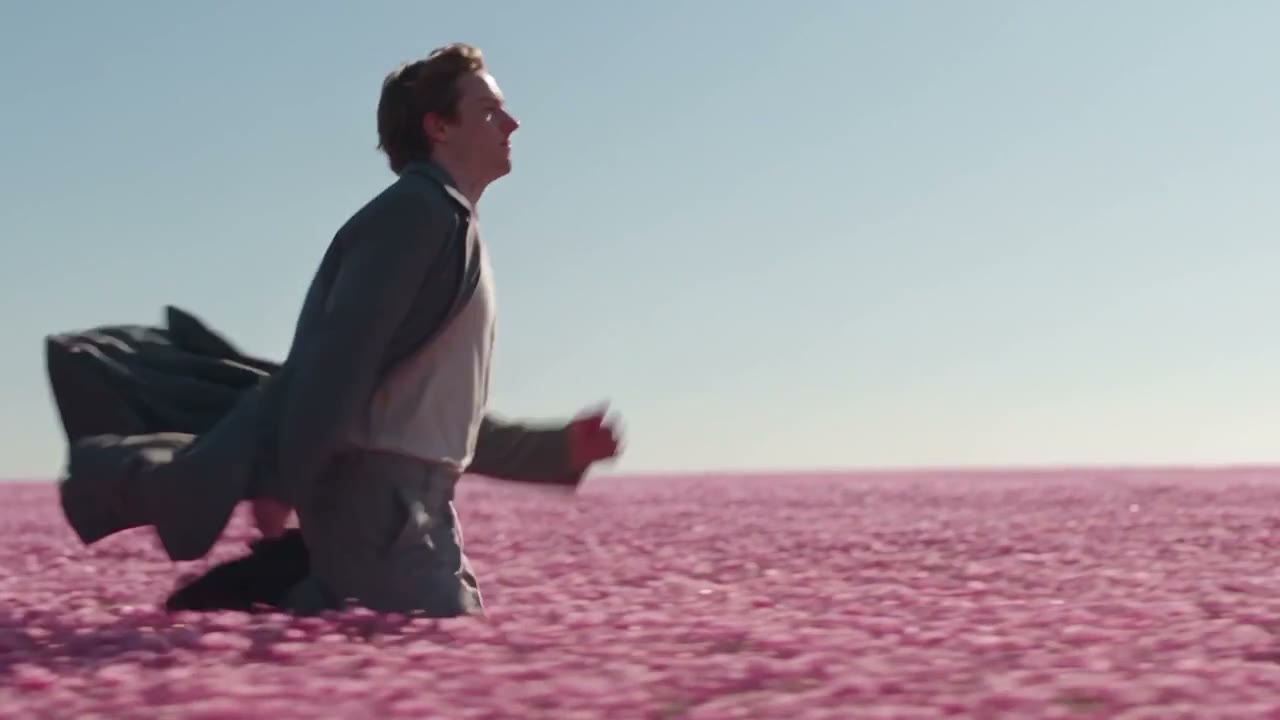
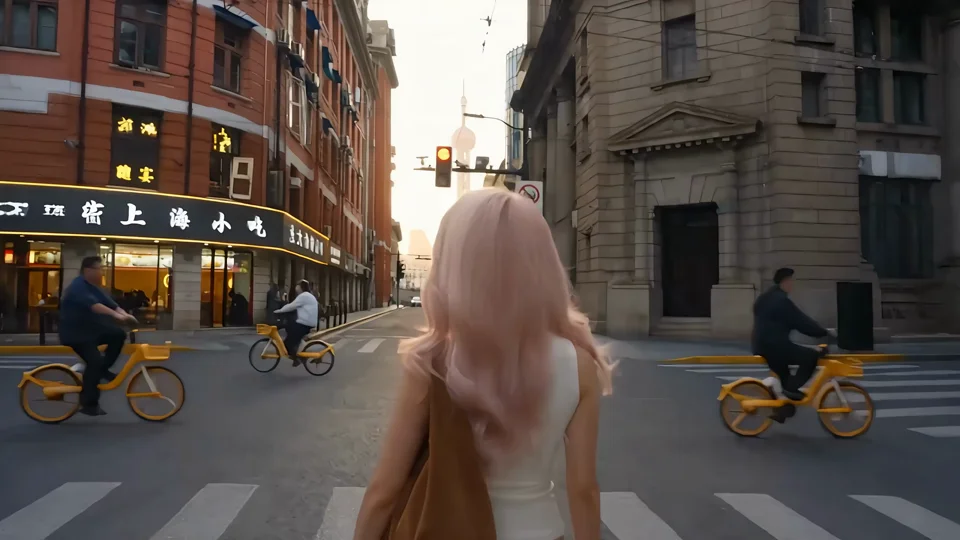
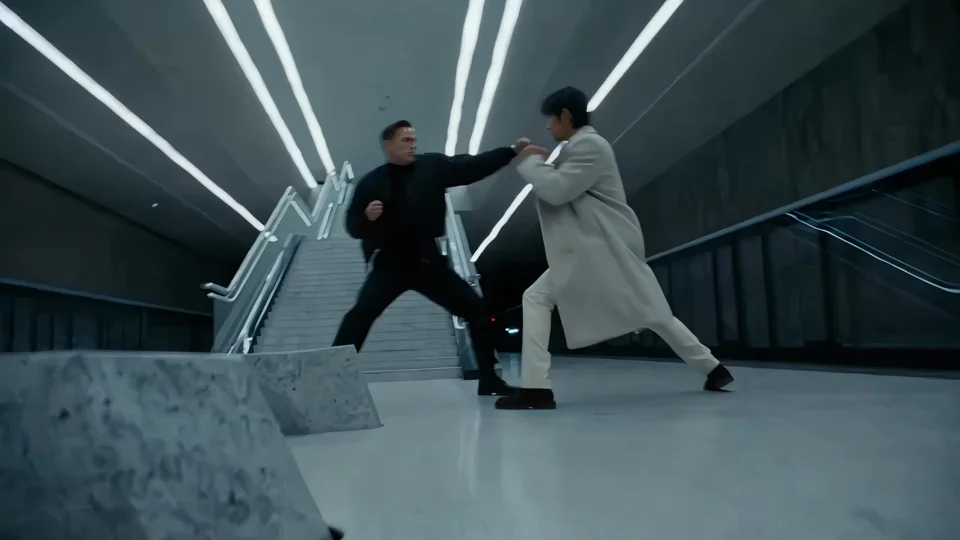
What it is
Create lists this model under the Kling 3.0 family, and the Try button opens that family with Motion Control selected. The catalog describes the inputs as a character image and a motion video. Qualities, the length of the motion video, and credits per second of that video are in Settings and credit cost. Controls such as keeping the original sound or character orientation appear only when the API lists those options.
Before you upload, check that the motion video actually contains the gesture you want and that the character image shows the body that must move. A close crop of a face will not invent legs for a full-body walk. A busy clip with two people will not tell the model which performer to follow. Trim to one action inside the length the catalog allows, then pick a quality. Standard and Pro, or whatever names the settings list, change the credit rate per second of that video. They do not change the job. If you wanted Kling to imagine the action from a sentence, you are on the wrong model. Open Kling 3.0 or Kling 3.0 Turbo for a prompted clip, and keep Motion Control for performances you already have.
Best uses
Use it when you already have a performance: a wave, a walk, a dance phrase, or a product mascot gesture, and you have a still of the character that should perform it. It is a fit for illustrated characters, portraits, and simple product figures. It is a weak fit when you have no reference video, or when you want Kling to write a new camera move from a sentence. For that, use a Kling text-to-video model instead.
Settings and credit cost
Catalog starting price: from 25 credits / source second.
Animate a character image with the movement from a reference video.
Motion control: qualities Standard, Pro; default quality Pro.
Motion control credit cost: 25 credits per second of source video at Standard; 34 credits per second of source video at Pro.
Motion control inputs: Motion video, 1 to 30 seconds. Character image.
Motion control controls: Keep original sound, Character orientation.
Prompt tips
Spend your effort on the image and the reference clip, not on a long scene prompt. The image should show the character clearly, with the body parts that need to move visible. The motion video should contain the action you want copied, without a second unrelated performance in the same file. If the catalog lists character orientation or original sound, set those to match the clip rather than describing them only in text. Keep the action inside the video length the settings allow.
Limits
Motion Control needs both inputs. A prompt alone will not run this model, and text-to-video is not listed for it. The motion video has a minimum and maximum length when the catalog sends those numbers. Quality names such as Standard or Pro are the tiers the API returns, and the credit rate follows the tier. Do not assume Turbo resolutions or 4K unless they appear in the settings for this model. Durations, qualities, frame slots, and credit rates on this page are read from the current Vidaro Studio catalog. If a control is not listed in Settings and credit cost, it is not offered for this model.
FAQ
What is Kling 3.0 Motion Control?
It is a Kling model on Vidaro Studio that animates a character image using the movement from a reference video.
What files do I need?
A character image and a motion video. The composer labels and length limits are the ones in the catalog.
Is this the same as Kling 3.0?
No. Kling 3.0 generates clips from text or frames. Motion Control follows a reference performance.
How is Motion Control billed?
Credits are charged per second of the source motion video and depend on quality. See the rates in Settings and credit cost.
How do I open it?
Use Try Kling 3.0 Motion Control free. The link selects this model inside the Kling Create page.