
Higgsfield · Video
Genjutsu
Genjutsu is the Higgsfield video model on Vidaro Studio for changing a clip you already filmed or generated. It does not start from a blank text prompt. You bring a source video, then pick one of the modes the catalog actually lists: motion transfer, object swap, or restyle. Motion transfer copies the movement in that video onto still images of characters, products, or outfits. Object swap replaces something inside the clip with images you supply. Restyle changes the overall look and asks you to choose a preset.
Examples
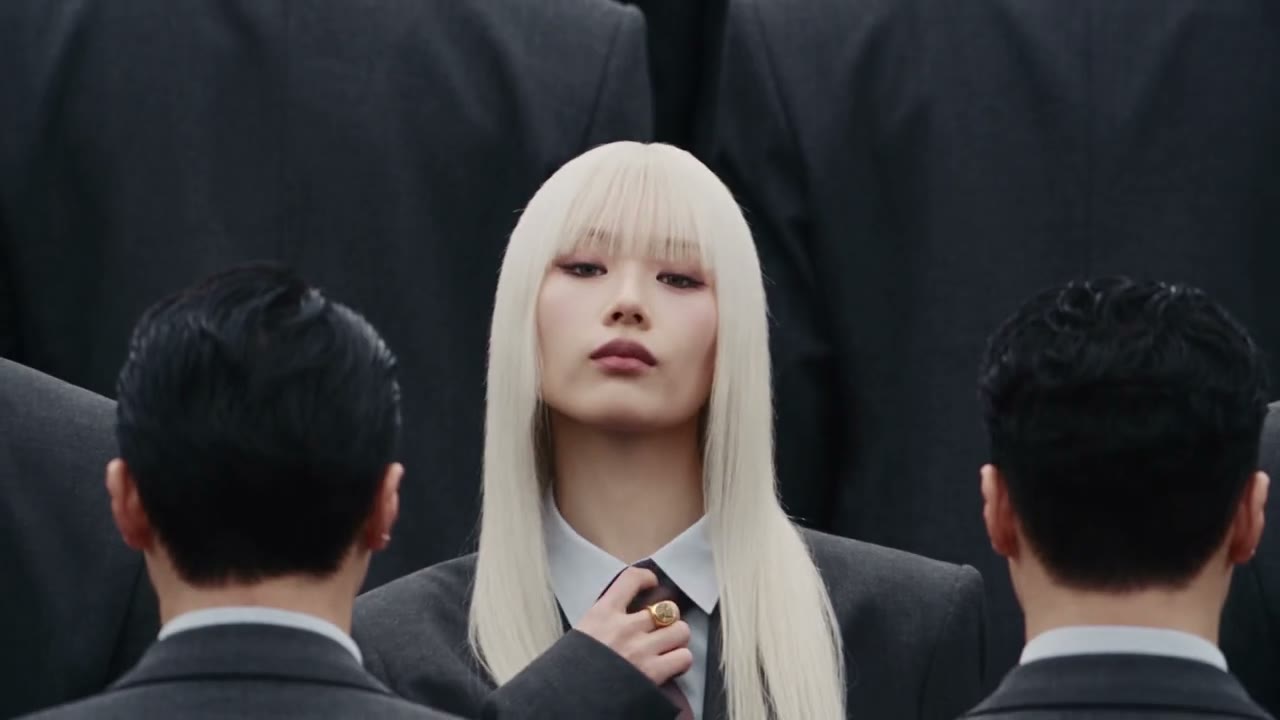
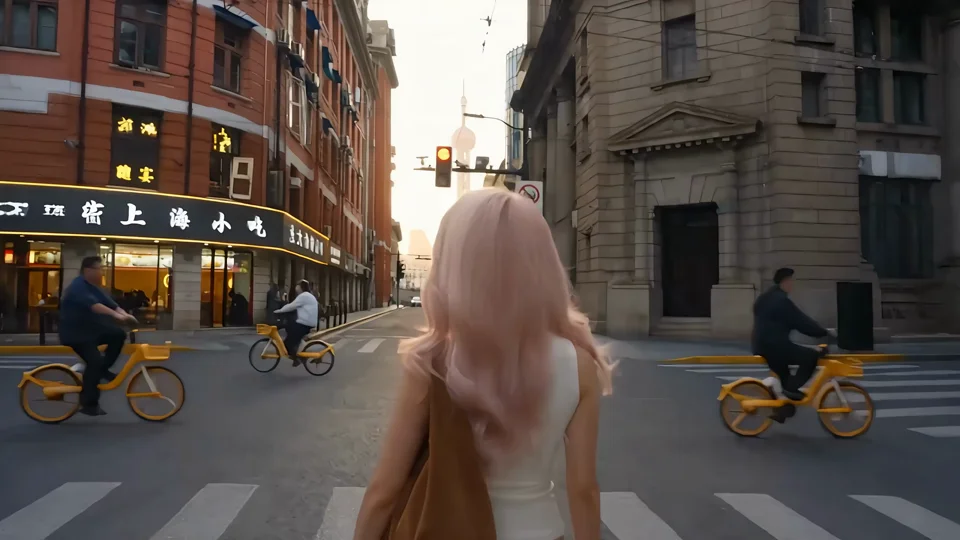
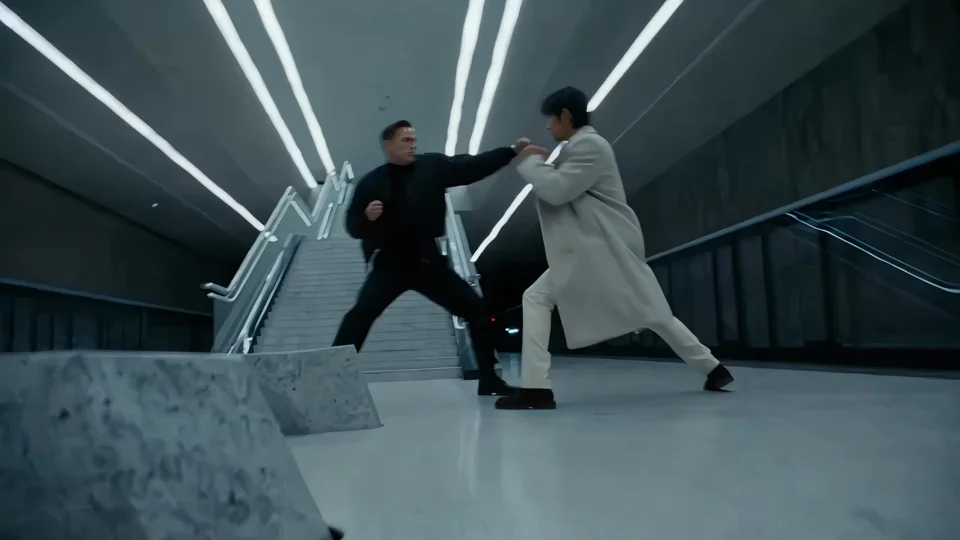
What it is
People use the name Genjutsu for this kind of video-to-video edit, and that is the name Vidaro Studio shows in Create. The provider is Higgsfield. A catalog preview for this model is on the page, along with separate Vidaro Studio showcase clips that are not labeled as Genjutsu outputs unless the showcase item itself names a model. Treat the settings section as the spec sheet: qualities, source-video limits, image counts, and credits per second of source video are printed there only when the API returns them.
A practical Genjutsu pass starts by watching the source once and deciding which of the three jobs you actually need. If the camera and the timing are already right, do not ask the model to invent a new shot. Motion transfer is for keeping that timing and changing who or what performs it. Object swap is for keeping the shot and changing one thing inside it. Restyle is for keeping the shot and changing the look, which is why a preset is part of that mode. Mixing those goals in one vague note makes the edit harder to judge. Generate the mode that matches the job, then compare the result with the source before you spend a higher quality. The credit line is tied to the source video, so a longer file costs more even when the idea is simple. Trim the source to the action you care about, inside the minimum and the billable maximum the catalog prints, before you upload.
Best uses
Genjutsu fits work that already has a performance, a camera move, or a product shot. Use motion transfer when the motion is right and the subject should become someone or something else. Use object swap when one object in the frame should be replaced and the rest of the shot should stay. Use restyle when you want a different look on the same footage and you are ready to pick a preset. It is a poor fit for a scene you have only described in words, because text-to-video is not part of this model.
Settings and credit cost
Catalog starting price: from 64 credits / source second.
Transform existing videos: transfer motion, swap objects, or restyle the whole look.
Motion transfer: qualities 480p, 720p, 1080p; default quality 720p.
Motion transfer credit cost: 64 credits per second of source video at 480p; 136 credits per second of source video at 720p; 326 credits per second of source video at 1080p.
Motion transfer inputs: Source video, at least 4 seconds, billed up to 30 seconds. Character images: 1 to 8.
Object swap: qualities 480p, 720p, 1080p; default quality 720p.
Object swap credit cost: 64 credits per second of source video at 480p; 136 credits per second of source video at 720p; 326 credits per second of source video at 1080p.
Object swap inputs: Source video, at least 4 seconds, billed up to 30 seconds, at least 409,600 pixels. Replacement images: 1 to 8.
Restyle: qualities 480p, 720p, 1080p; default quality 720p.
Restyle credit cost: 64 credits per second of source video at 480p; 136 credits per second of source video at 720p; 326 credits per second of source video at 1080p.
Restyle inputs: Source video, at least 4 seconds, billed up to 30 seconds. Character images (optional): 0 to 5.
Prompt tips
Write any extra direction as a short note about what must stay consistent, not as a full scene description. The catalog's own prompt hint for each mode is the wording Vidaro shows in Create, including when that hint says the note is optional. Name the subject in the images you upload so the edit has a clear target. For motion transfer, use images that match the number of people or products that should follow the movement. For object swap, use clear replacement images of the object you want in the shot. For restyle, choose the preset before you worry about extra character images.
Limits
Genjutsu cannot invent the original action. If the source video is the wrong length, the wrong resolution, or missing the subject you hoped to replace, the mode will not add that footage for you. Image counts, minimum video length, billable length, and any pixel minimum are the numbers in Settings and credit cost. Restyle requires a preset when the catalog says the preset is required. There is no separate text-to-video or image-to-video mode on this model. Durations, qualities, frame slots, and credit rates on this page are read from the current Vidaro Studio catalog. If a control is not listed in Settings and credit cost, it is not offered for this model.
FAQ
What is Genjutsu on Vidaro Studio?
Genjutsu is a Higgsfield video model that edits a source video. The modes listed for it are motion transfer, object swap, and restyle.
Can Genjutsu start from text only?
No. Genjutsu on Vidaro Studio starts from a source video. It does not list text-to-video.
What is the difference between the Genjutsu modes?
Motion transfer applies movement to images you add. Object swap replaces part of the clip with replacement images. Restyle changes the look and uses a preset.
How much does Genjutsu cost?
Credit cost is charged from the source video and depends on quality. The rates on this page are the catalog rates, not a fixed package price.
How do I try Genjutsu?
Use Try Genjutsu free. It opens the Create page for the Genjutsu model with that version selected.